
Learn how to track sale conversion events using Shopify and Linkkit to measure purchases, revenue, and customer conversions from your referral links.
Linkkit’s Shopify integration automatically listens for orders from Shopify and records them as sale conversion events in Linkkit.
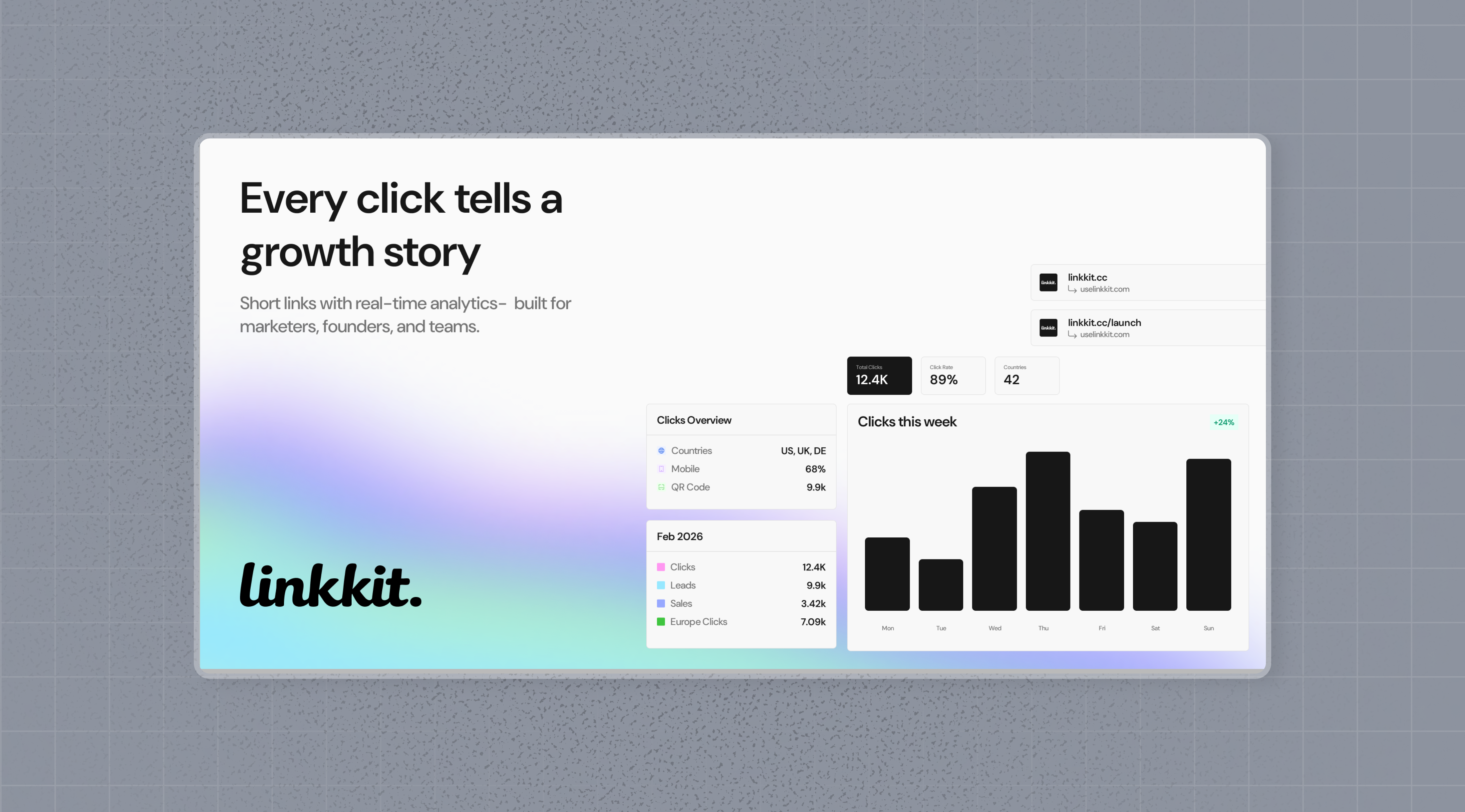
In this guide, we’ll cover how to track sale events from Shopify using Linkkit’s Shopify integration.
Step 1: Enable Conversion Tracking for Your Links
Before you can start tracking conversions, you need to enable conversion tracking for your Linkkit links.
Option 1: Workspace-Level Setup
Go to your workspace’s Tracking Settings page.
Turn on the Workspace-Level Conversion Tracking toggle to enable conversion tracking for the entire workspace.
Option 2: Link-Level Setup
To enable conversion tracking for an individual link, open the Linkkit Link Builder, select the desired link, and turn on the Conversion Tracking toggle.
Option 3: Via the API
Simply pass trackConversion: true when creating or updating a link to activate conversion tracking.
Step 2: Install the Linkkit Shopify App
1. Install the Shopify App
Install the Linkkit Shopify App from the Shopify App Store to connect your Shopify store and enable conversion tracking.
2. Connect Shopify to Your Linkkit Workspace
After installing the app, you’ll be prompted to connect your Linkkit workspace with Shopify.
Select Connect to link your Shopify store with your Linkkit workspace.
Once connected, you’ll be redirected back to Shopify, where you’ll see a list of links available in your Linkkit workspace.
With the Linkkit Shopify app, you can also create links with conversion tracking enabled directly from your Shopify store.
If you need more advanced link creation options, you can use the Linkkit Link Builder to create conversion-enabled links with additional customization.
3. Activate Linkkit Analytics Script
After installing the Linkkit Shopify app, the Linkkit Analytics script is added as an app embed. However, you need to manually enable it to ensure it loads with your current Shopify theme.
To activate the Linkkit Analytics script:
- Open your Shopify Admin Panel.
- Go to Online Store → Themes.
- Click Customize for your active theme.
- In the theme editor, open the App Embeds tab.
- Find the Analytics Script for the Linkkit Shopify app and toggle it on to activate.
app/uninstalled: Triggered when the Linkkit app is removed from a Shopify store. This event removes the integration from your Linkkit workspace.
In addition to these events, Linkkit also subscribes to Shopify’s required compliance webhook topics to ensure the integration follows Shopify’s platform requirements.
Step 3: View Conversion Results
Your setup is complete! You can now monitor your conversion performance and track revenue generated through your Linkkit links.
Linkkit provides three different views to help you analyze your conversion data:
Time-Series View
A timeline-based view that shows the number of clicks, leads, and sales over a selected period.
This helps you track trends and understand how your conversion performance changes over time.
Funnel Chart View
A visual overview of your conversion funnel that displays conversion rates and drop-off points at each stage of the customer journey:
Clicks → Leads → Sales
This view helps you identify where users are dropping off and measure how effectively your links convert visitors into customers.
Real-Time Events Stream
A live stream that displays every conversion event generated across all your Linkkit links within your workspace.
This view allows you to monitor conversion activity in real time and track events such as clicks, leads, and sales as they happen.
Currency Conversion Support
For simplicity, Linkkit records all Shopify sales in the store’s default currency.
For example, if your Shopify store uses USD as its primary currency, Linkkit will record all sales in USD, even when customers complete purchases using a different currency.
// Shopify orders/paid event payload
// @see: https://shopify.dev/docs/api/webhooks?reference=toml#list-of-topics-orders/paid
{
  ...
  "current_subtotal_price_set": {
    "shop_money": {
      "amount": "398.00", // this is the amount that LinkKit will record
      "currency_code": "USD" // this is the currency of your Shopify store
    },
    "presentment_money": {
      "amount": "572.25",
      "currency_code": "CAD"
    }
  },
  ...
}